Open editor
Open source · No install · No upload

LightCraft, online

A free RAW photo editor and photo library in a browser tab, laid out the way Lightroom users expect. Import your photos, develop them without touching the originals, export when you’re done. Everything stays on your computer.

LightCraft web build v0.6.0 · released Oct 11, 2026 · first visit downloads about 20 MB

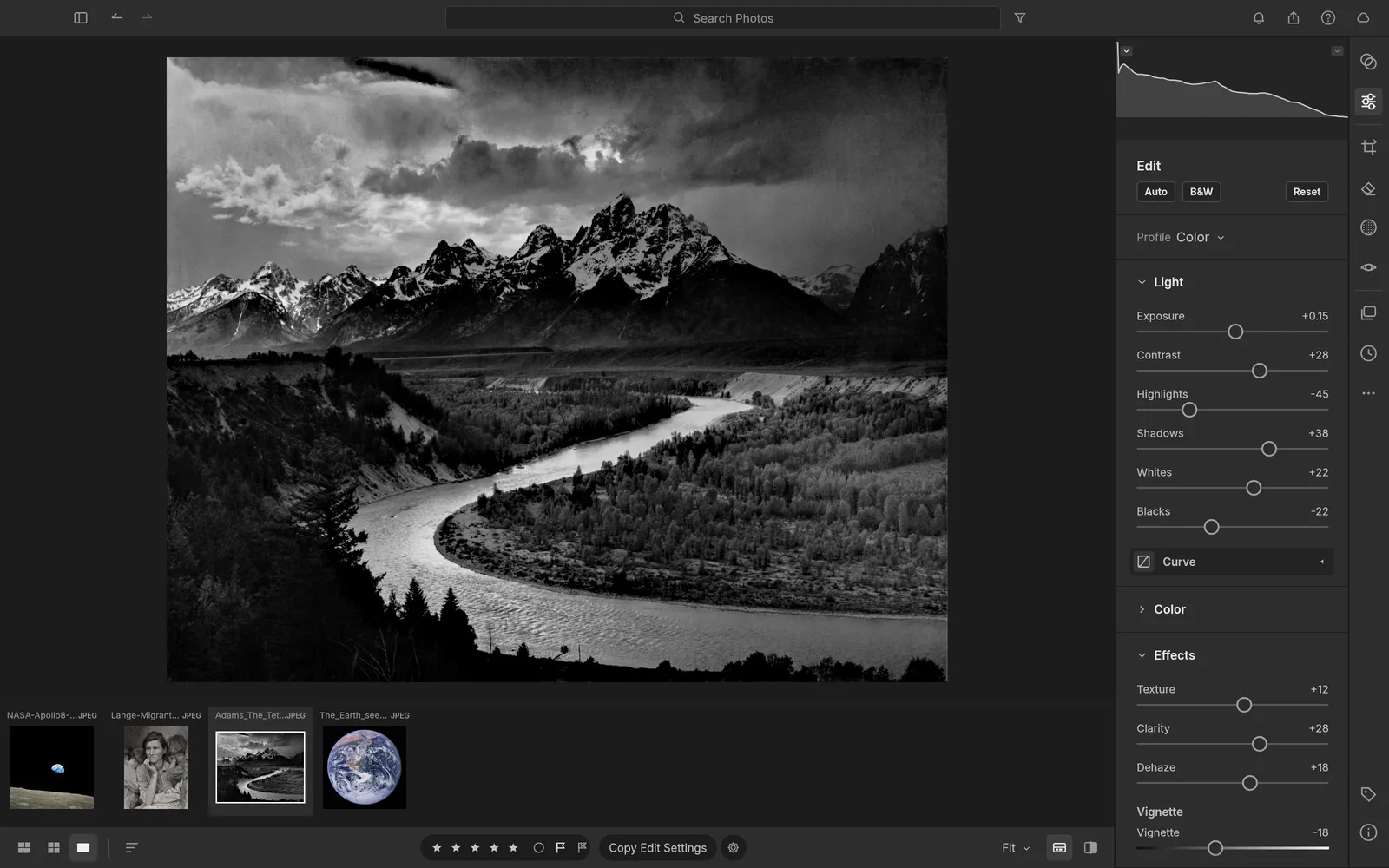
LightCraft developing The Tetons and the Snake River, with the Light and Effects sliders open and four photos in the filmstrip
The Tetons and the Snake River (Ansel Adams, 1942) in the Edit view: Highlights −45, Shadows +38, Clarity +28. Screenshot from the LightCraft project.
Non-destructiveEdits are a list of settings; originals never change
RAW and JPEGDNG, CR2, CR3, NEF, ARW, RAF, RW2, ORF, PEF and more
Private by designPhotos are processed and stored on your device
9 languagesSwitch in Edit › Language
In the editor

If you know Lightroom, you already know where things are

G for the grid, E to edit, C to crop, M for masks, \ to see the original. Here is some of what the browser version does.

LightCraft’s Edit view with The Tetons and the Snake River in the loupe and the Light and Effects sliders on the right

Sliders you already know

Exposure, Contrast, Highlights, Shadows, Whites and Blacks, then Texture, Clarity, Dehaze, Vignette and Grain. Every slider renders through a 32-bit float, wide-gamut pipeline, and pulling Highlights recovers a bright sky without grey halos.

The Tetons and the Snake River — Ansel Adams, 1942
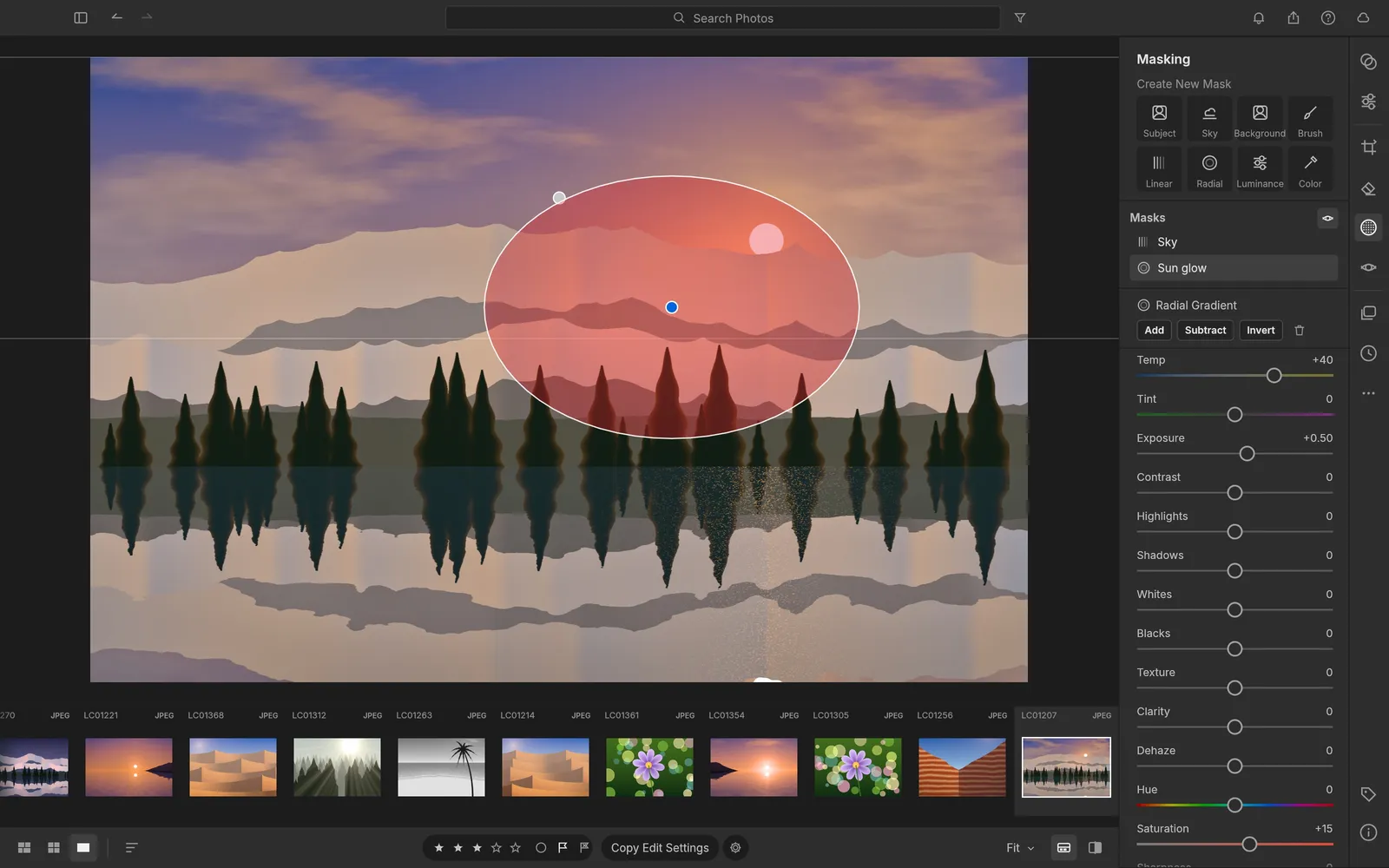
The Masking panel with a linear Sky mask and a radial Sun glow mask drawn as a red overlay on a lake scene

Masks that go where you point

Paint with a brush, drop linear and radial gradients, or select by luminance, colour, sky, subject or background. Combine masks with add, subtract and intersect, and give each one its own 15 local adjustments.

Photo from LightCraft’s generated demo library
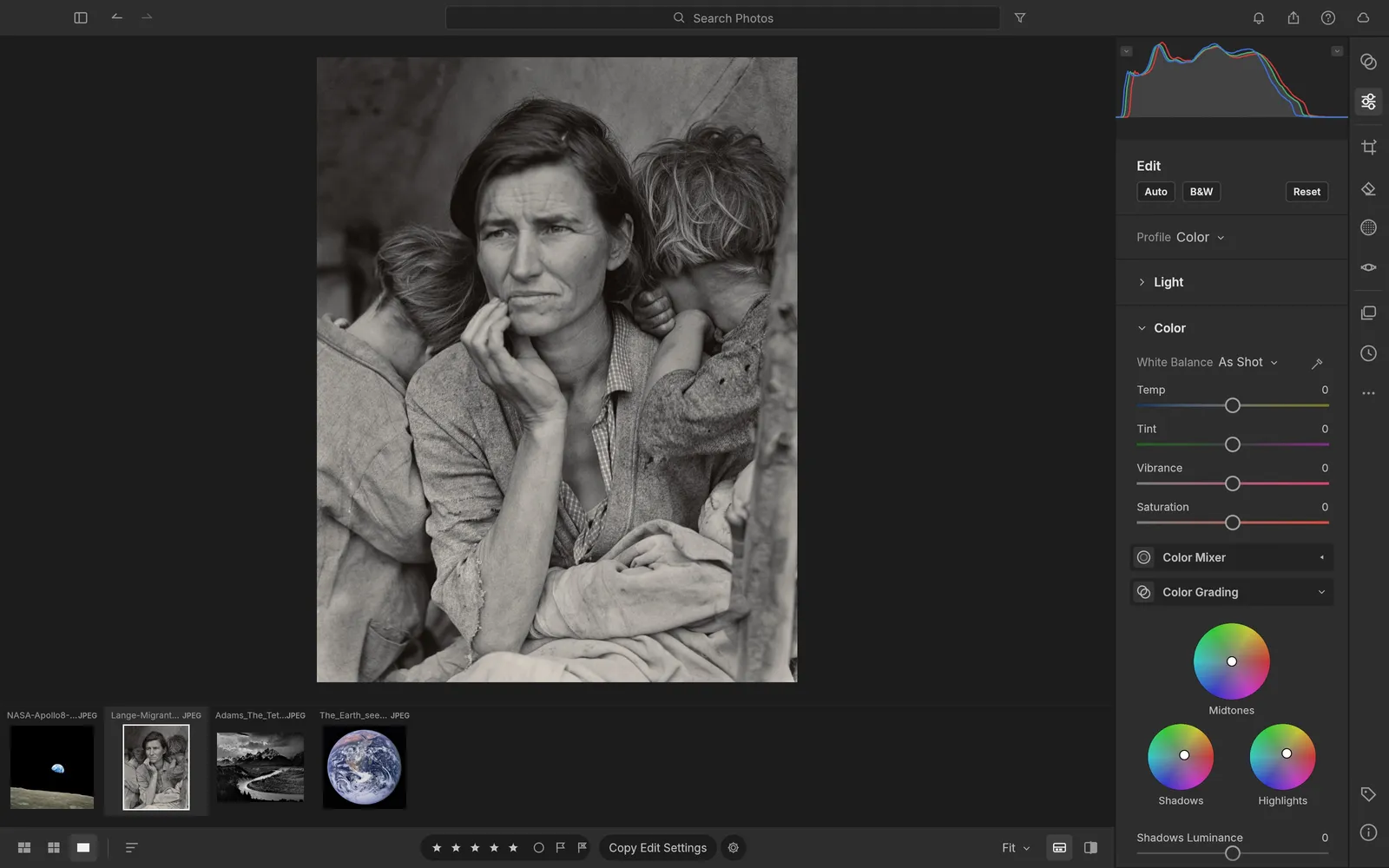
Color Grading wheels for shadows, midtones and highlights next to Migrant Mother, toned warm like a print

Color grading and the Color Mixer

Three colour wheels for shadows, midtones and highlights, plus an 8-band Color Mixer for hue, saturation and luminance. White balance has presets, Auto and an eyedropper; Vibrance protects skin tones.

Migrant Mother — Dorothea Lange, 1936
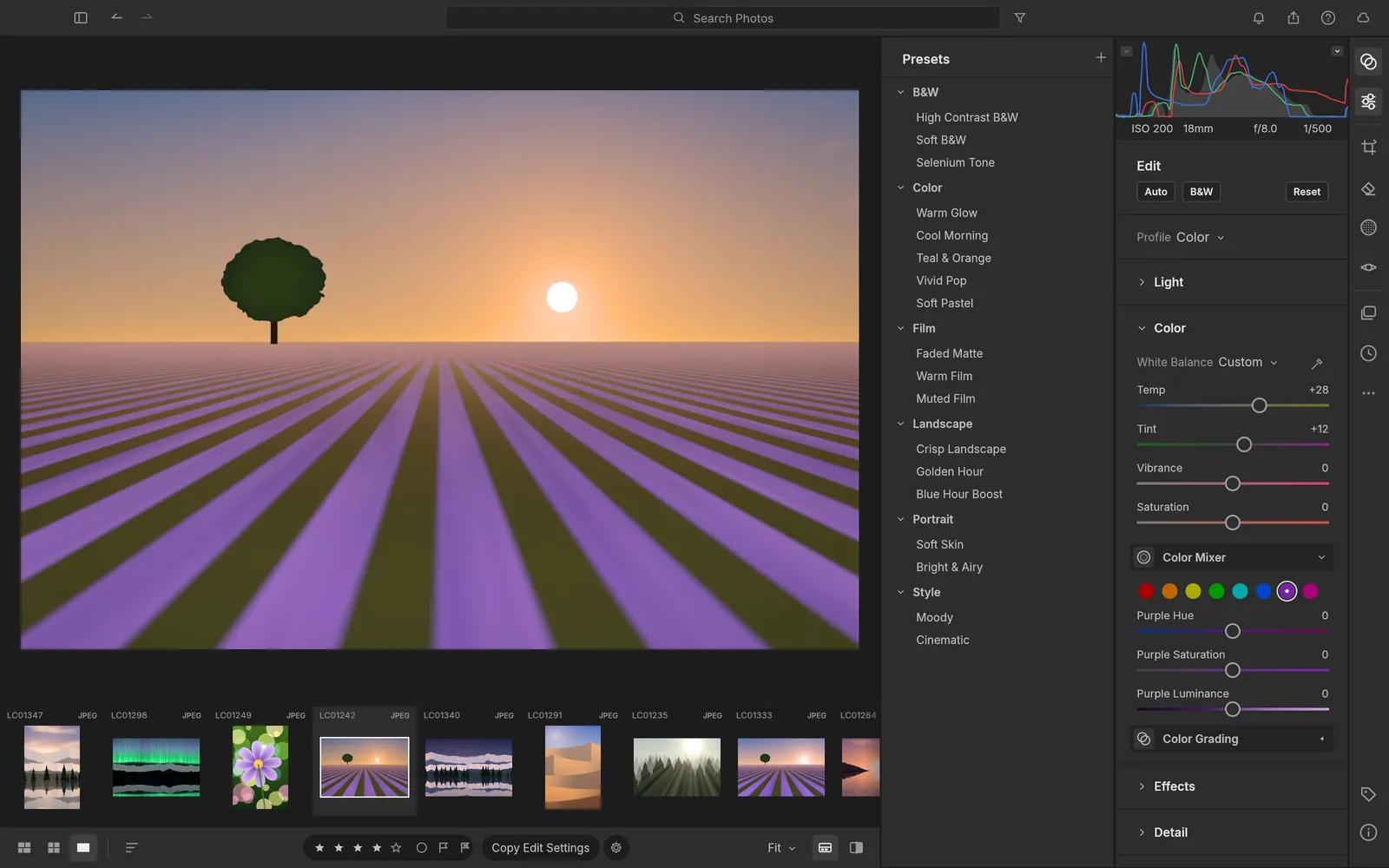
The Presets column grouped into B&W, Color, Film, Landscape, Portrait and Style beside the Color Mixer

Presets with an Amount slider

Eighteen built-in presets such as Golden Hour, Teal & Orange and Selenium Tone, each with an Amount from 0 to 200%. Save your own, then copy, paste or sync settings across a whole selection.

Photo from LightCraft’s generated demo library
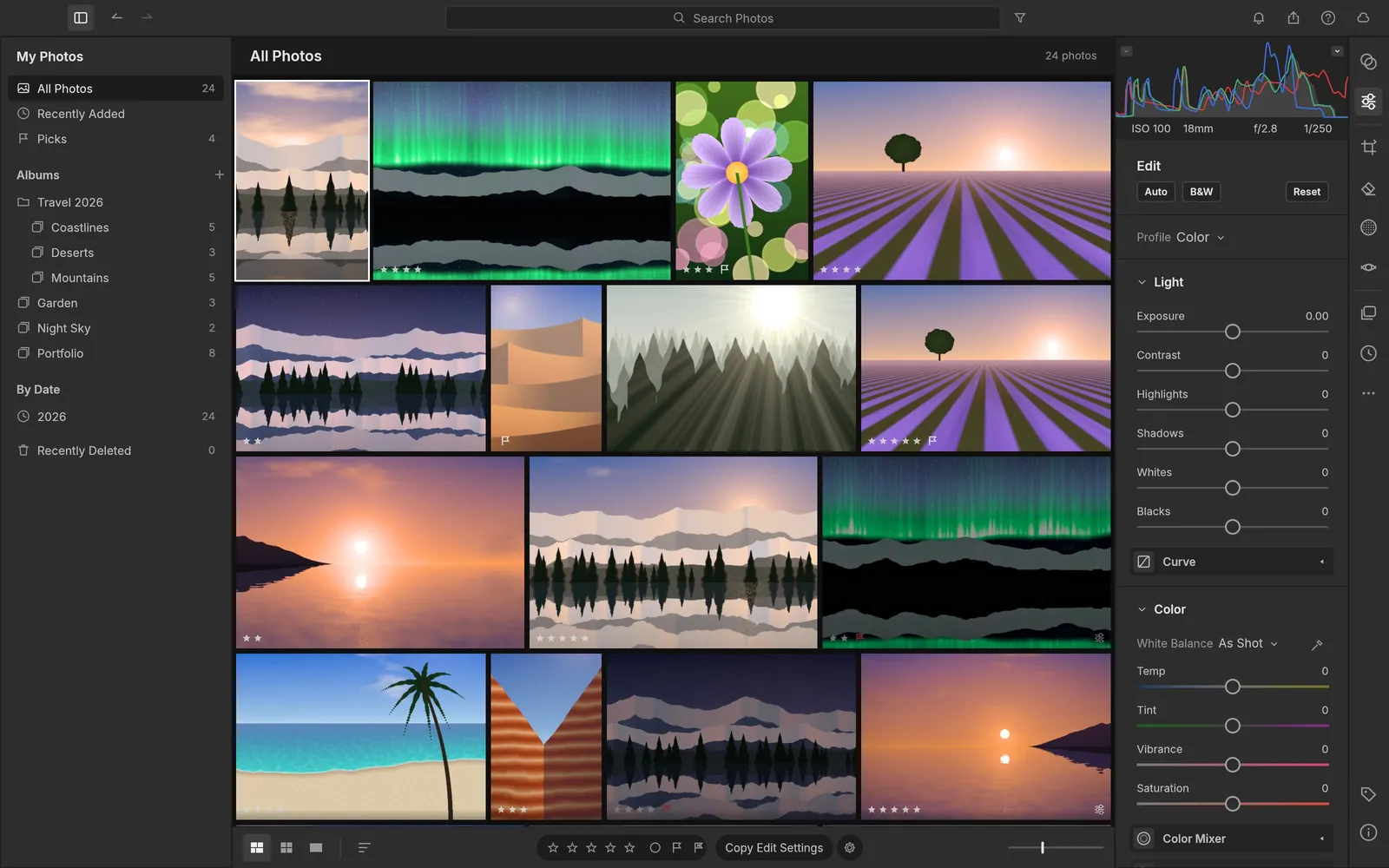
The Photo Grid with ratings and flags, and a sidebar of albums nested in a Travel 2026 folder

A library, not just an editor

Albums in folders, smart albums, stacks, ratings from 0 to 5, pick and reject flags, colour labels and a search that understands fields like rating:>3 or iso:>800. In the browser the library is kept in your browser’s own storage.

Photos from LightCraft’s generated demo library
AI tools · bring your own key

Let a model set the sliders, or retouch the pixels

Open the AI panel next to LightCraft and paste an OpenAI, Google Gemini or OpenRouter key. Auto develop has a vision model propose Light, Color and Effects values for the selected photo; you check them and apply them as one undoable step.

Requests go from your browser to the provider. We never see your key or your photos, and we add no markup.

How the AI tools work
  • Auto developSlider values for a goal in plain words, applied non-destructively
  • RetouchRemove an object or distractions, cut out the background, replace the sky, restyle
  • Back into your libraryOne click imports a retouched result into LightCraft as a new photo
This site

What lightcraft.run adds

The editor is the official build, unmodified. Around it we add a few things the bare build doesn’t have.

Always the latest release

Each new LightCraft release is checked against its published SHA-256 checksum and deployed here. You are on v0.6.0.

AI panel on your own key

Auto develop and generative retouching with OpenAI, Gemini or OpenRouter models, straight from your browser.

Guides for the browser version

How to edit RAW photos online and how LightCraft compares as a Lightroom alternative.

Nothing to sign up for

No account, no watermark, no upload. Your library lives in your browser, not on our server.

Getting started

Three steps

  1. Open the editor. The first visit downloads about 20 MB. A new library starts with LightCraft’s demo photos, so you can try every slider right away.
  2. Import your photos. Use File › Import Photos… (⌘⇧I / Ctrl+Shift+I) or drag files onto the window. They are copied into the library in your browser.
  3. Edit and export. Press E to edit, then File › Export… (⌘⇧E / Ctrl+Shift+E) to download a JPEG, PNG, TIFF or WebP with your settings applied.

LightCraft is in alpha, and its browser version is marked experimental. Keep your original photos somewhere else, and use File › Back Up Library… to save a copy of your library as a zip.

FAQ

Questions

Is LightCraft Online free?

Yes. LightCraft is free and open source, there is no account and no subscription. The optional AI tools use your own API key, so any AI usage is billed by your provider, not by us.

Is this the official LightCraft?

It is the official LightCraft web build, unmodified, published by the ArtCraft team on GitHub. This site is independent: we host that build, keep it on the latest release and add guides and the AI panel around it.

Are my photos uploaded anywhere?

No. LightCraft runs in your browser with WebAssembly. Imported photos, edits and the catalog are kept in your browser’s storage on your device, and exports save as downloads. The only exception is the AI panel, which sends the photo you choose straight to the AI provider whose key you entered.

Which RAW files can it open?

DNG, Canon CR2 and CR3 (lossless and C-RAW), Sony ARW, Nikon NEF, Fujifilm RAF (including X-Trans), Panasonic RW2 and Leica RWL, Pentax PEF, and uncompressed Olympus ORF and Samsung SRW, plus JPEG, PNG, TIFF and WebP. Support varies by camera; the project keeps a per-camera list. HEIC is not part of the browser build.

Does it keep my edits when I close the tab?

Yes. Unlike most browser editors, LightCraft keeps a real library in your browser’s storage, so photos and edits are still there next time. It is experimental: browsers can clear site data, so keep your originals elsewhere and use File › Back Up Library… now and then.

How big is the first download?

About 20 MB the first time: the app itself (26 MB, compressed in transit) and the font for its Chinese interface. After that your browser only checks for changes.

Which browsers work?

A current desktop browser with WebGL2. LightCraft’s developers run their browser checks in Chrome and list Safari and Firefox testing as still in progress. Open it in one tab at a time: a second tab shows a notice instead of a second copy of your library.

How does it compare with Lightroom?

LightCraft is a clean-room, open-source reimplementation of Adobe Lightroom’s photo library and raw development, in alpha. Its developers put it at about 81% of Lightroom by feature count and nearer 61% as a day-to-day replacement. There is no cloud sync and nothing to subscribe to.
Develop your next photo here

Free, private, and your library is still there next time.

Open the editor